Create
Click the Create Container button to enter the form for creating
a new container object. This does not create a Docker container yet but
only gathers information. The actual Docker container is created when
starting the container.

Fill in at least the mandatory fields, marked with a star (*). Some of
them are pre-filled with a reasonable default value. Change only if required.
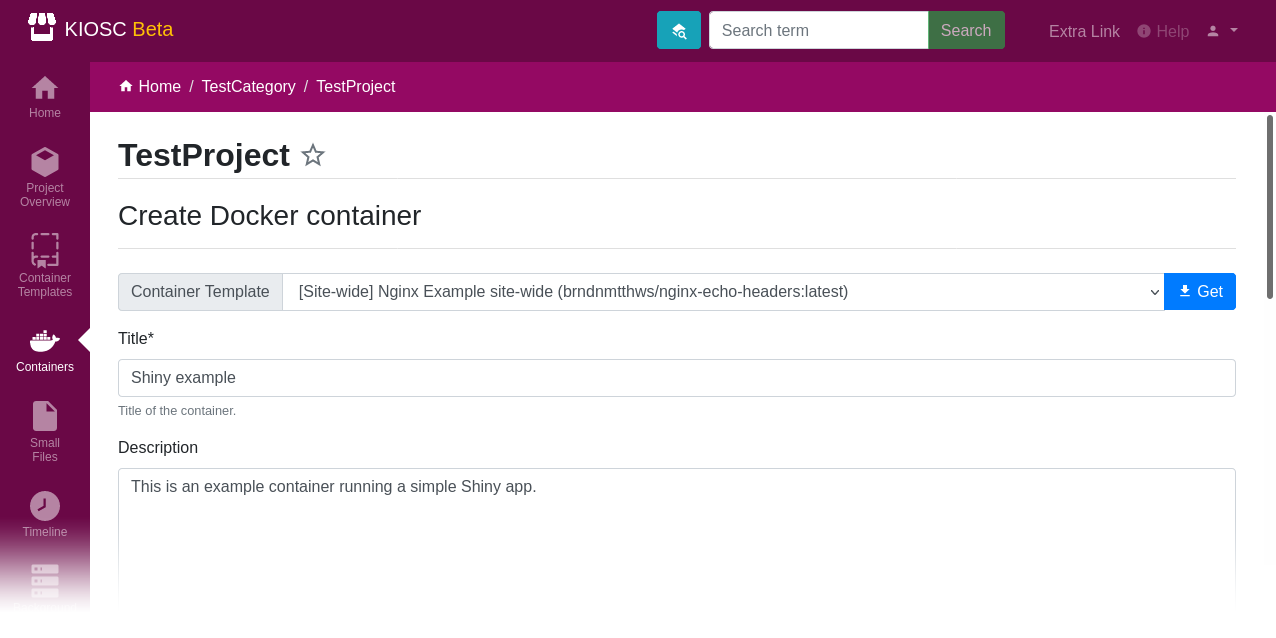
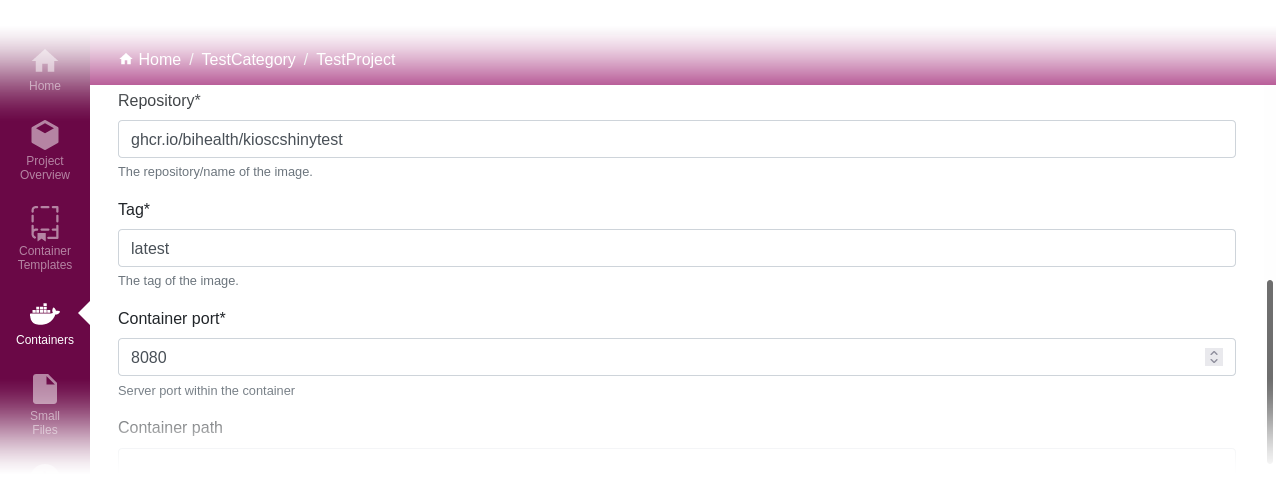
Others like Title, Repository, Tag and Container Port have to
be set by the user. Below is a detailed description of each form field. In the example
screenshots, we set up a Shiny app.
Fill in a reasonable title that helps you identify the container. The title must be unique. A description is helpful, but not required.
Fill in the repository, tag and container port.
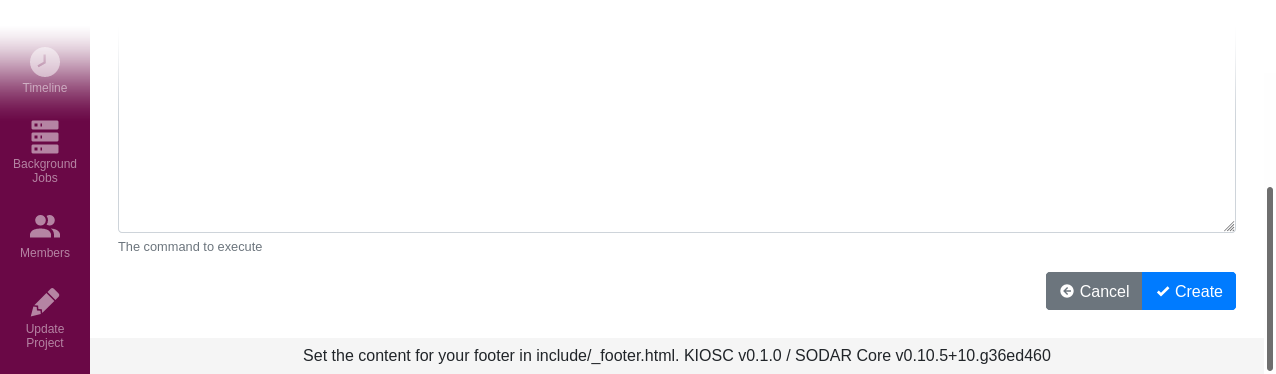
After filling the form, click the Create button to create the container object.
This does not create the actual Docker container yet.
Container templates
It is often the case that the same type of container will be used multiple times
across the site. To save some time and reduce the chances of mistakes, Kiosc
provides container templates. To make use of them, select a template from the
top-hand dropdown menu. This will populate all form fields that are set in the
template with you create form. Anything you already entered will be overwritten.
The prefix [Site-wide] or [Project-wide] indicates whether this template
is either a site-wide or a project-wide template. By default, one template for
an example Shiny app is available (it does not contain any meaningful data and
is just meant as a toy example). Admins can then create additional site-wide
templates.
Registry user and Registry password
If the Docker image is hosted in a private container registry, you can specify the user and password credentials in the form.
For example, if the image is in a GitLab container registry, you will first need to generate an access token first, and then use it as the Registry password field.
In general, images can be downloaded from private registry only after running the docker login command.
The fields Registry user and Registry password mirror the credentials that you have to ender with docker login.
Note that after creating the container the credentials will not be visible anymore, but they will be replaced everywhere by a <masked> token.
Environment
Environment variables can be specified using a JSON dictionary. Top-level keys in the dictionary become the environmental variables visible to the app launched in the container:
{
    "ID": "My container",
    "LIST": [ "A", "B", "C" ]
}
Given the above example, two environment variables will be defined: ID
and LIST. The contents of ID will be My container; the contents of
LIST will be [ 'A', 'B', 'C' ]. Note that the double quotes will be
changed to single quotes.
These variables are available to the web app of the container, and can be used to specify e.g. a data source or other parameters for the container web app.
In addition to the user defined variables, the title, description and
container_port are also exposed as environment variables to the Docker container
(as TITLE, DESCRIPTION and CONTAINER_PORT respectively).
The complete list looks like this:
{
    "ID": "My container",
    "LIST": [ "A", "B", "C" ],
    "TITLE": "Some title",
    "DESCRIPTION": "Some description",
    "CONTAINER_PORT": 8080,
}
Environment secret keys
Environment secret keys is a comma-separated list of sensitive keys to environment variables that have to
have a corresponding key defined in the JSON dictionary in the environment field.
Those variables will be masked when editing them or viewing the details of the container.
Container path
The container path is the folder structure appended to the web address of the container.
Timeout
The timeout is set in seconds and is set as the time limit for any Docker action (start/stop/etc..) to complete.
Heartbeat URL (inactive)
The heartbeat URL can be used to check whether the container app runs correctly. (Feature is currently inactive)
Files
This dropdown provides the files that were uploaded to Kiosc via the Small Files
app to the project the current container is created in.
To get the internal link to the file the container then can access, click Insert
and the link will be appended to the command field.
Max retries
Maximal number of retries for an action in case of failure. If an action (e.g. starting a container) fails, it will be retried this many times.
Inactivity threshold
Number of days the container is allowed to run without proxy access. If this threshold is hit, the container will be stopped.