Access & Controls
Access (via Proxy)
The web application running inside of the container can be accessed by clicking the blue button with the eye icon.

Controls
The Controls dropdown menu (cog icon) comprises
multiple actions that can be issued on a container,
displayed depending on the state the container is currently in.
In the details page this menu is presented by the cog icon + Controls,
while in the list this is presented by the cog icon only.
The Controls button on the details page:

The Controls button on the container list:

The dropdown menu for the Controls includes all the actions that you can perform on the container. If you are not allowed to perform an action, the corresponding button will not be shown.
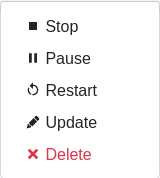
Start
Create a container from a Docker image and start it. If the image isn’t cached
yet, it is pulled from the specified repository. If you have used Docker from
the command line before, this control is roughly equivalent to a docker run
command.
The state should be running when performed successfully. If the container fails to start, the state will be either created or failed.
Stop
Stop a running Docker container. If the container is not running, this action has no effect.
Internally, a docker stop is performed.
The state should be exited when performed successfully.
Pause
Pause a running Docker container.
Internally, a docker pause is performed.
The state should be paused when performed successfully.
Unpause
Unpause a paused Docker container.
A docker unpause is performed.
The state should be running when performed successfully.
Reset
Deletes and recreates the container.
Internally, the following cadence is performed:
docker stop
docker rm
docker pull
docker create
docker start
The state should be running when performed successfully.
Update
This leads to the form to update the setting of the current container.
Please note that values of items in the environment dictionary are
displayed as <masked> if listed in the environment_secret_keys.
When left as <masked>, the value itself will not change. To set a
new value, simply change the value.
Updating a container will also stop it.
Delete
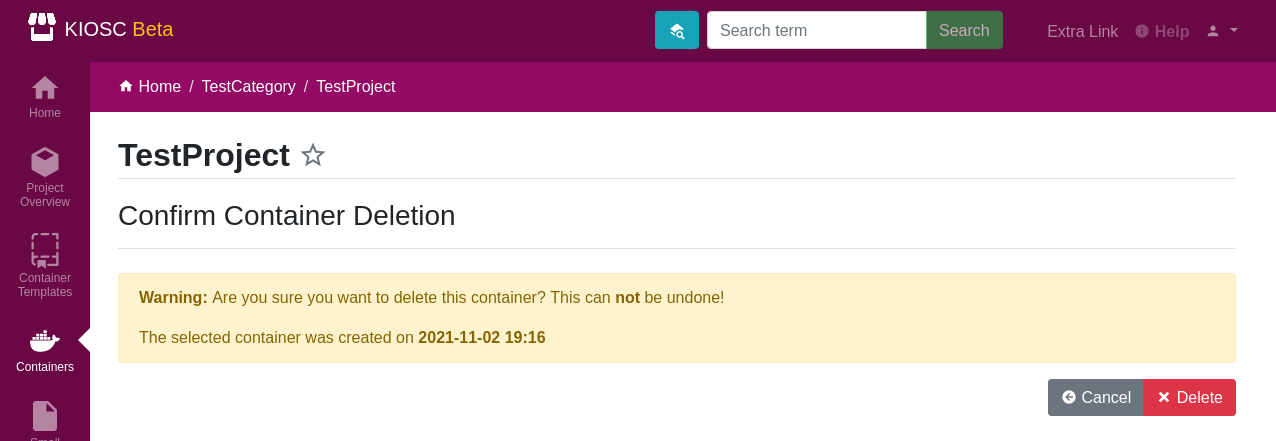
This makes sure that the associated Docker container is not running and stops it if necessary, and deletes the Docker container as well as the database object. This action can’t be undone.